How it works

From the careers page to your toolbar.

Jobly does the checking for you: it reads company career pages every two hours, keeps each job’s real date, and tells you when a new one fits what you’re looking for.

How it works

Get started with Jobly

  1. Step 1

    Add Jobly to Chrome. It’s free and needs no sign-up.

  2. Step 2

    Pick the roles you want, your experience level and where you want to work. Change it any time.

  3. Step 3

    Open the toolbar icon to see your matches, newest first. Jobly lets you know when a new one appears.

Behind the scenes: every two hours Jobly’s server reads the career pages of hundreds of companies and three remote job boards, checks each posting date and drops anything older than 60 days. Your preferences stay in your browser and travel with each request only to pick your matches; the server doesn’t keep them.

Tour

What you’ll see

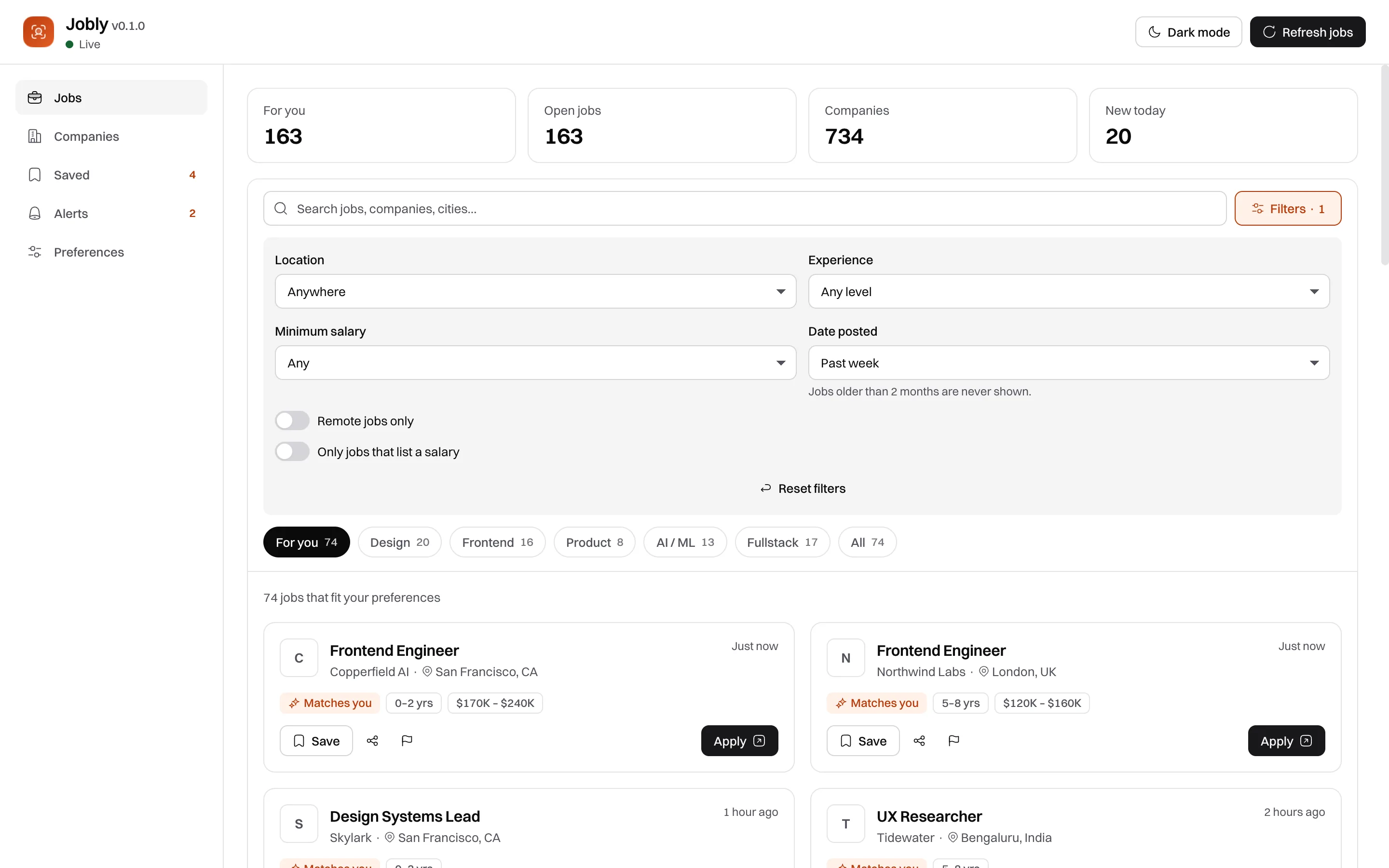
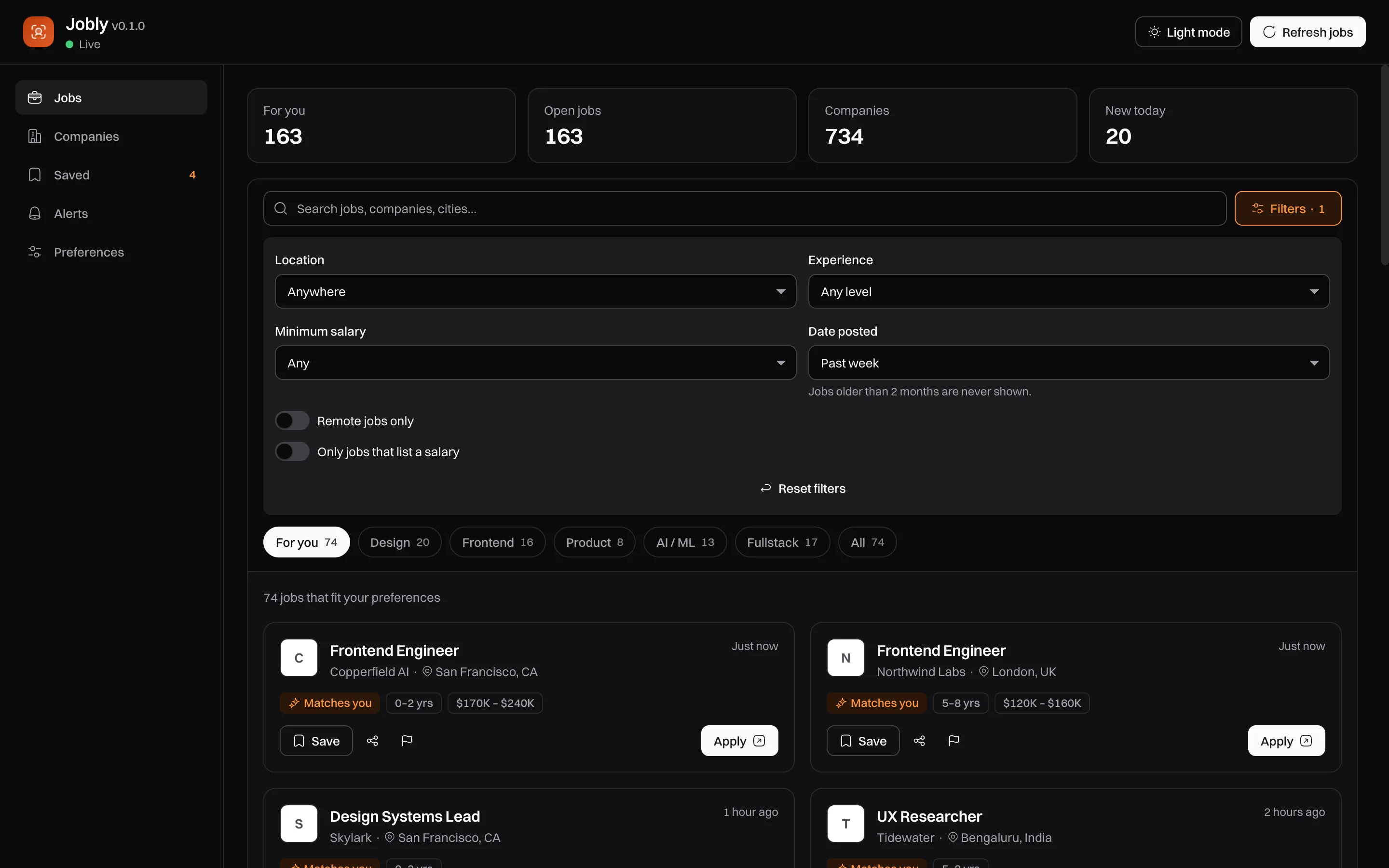
Jobly opens as a full page from the toolbar icon. Four views, nothing else to learn.

01

Jobs feed

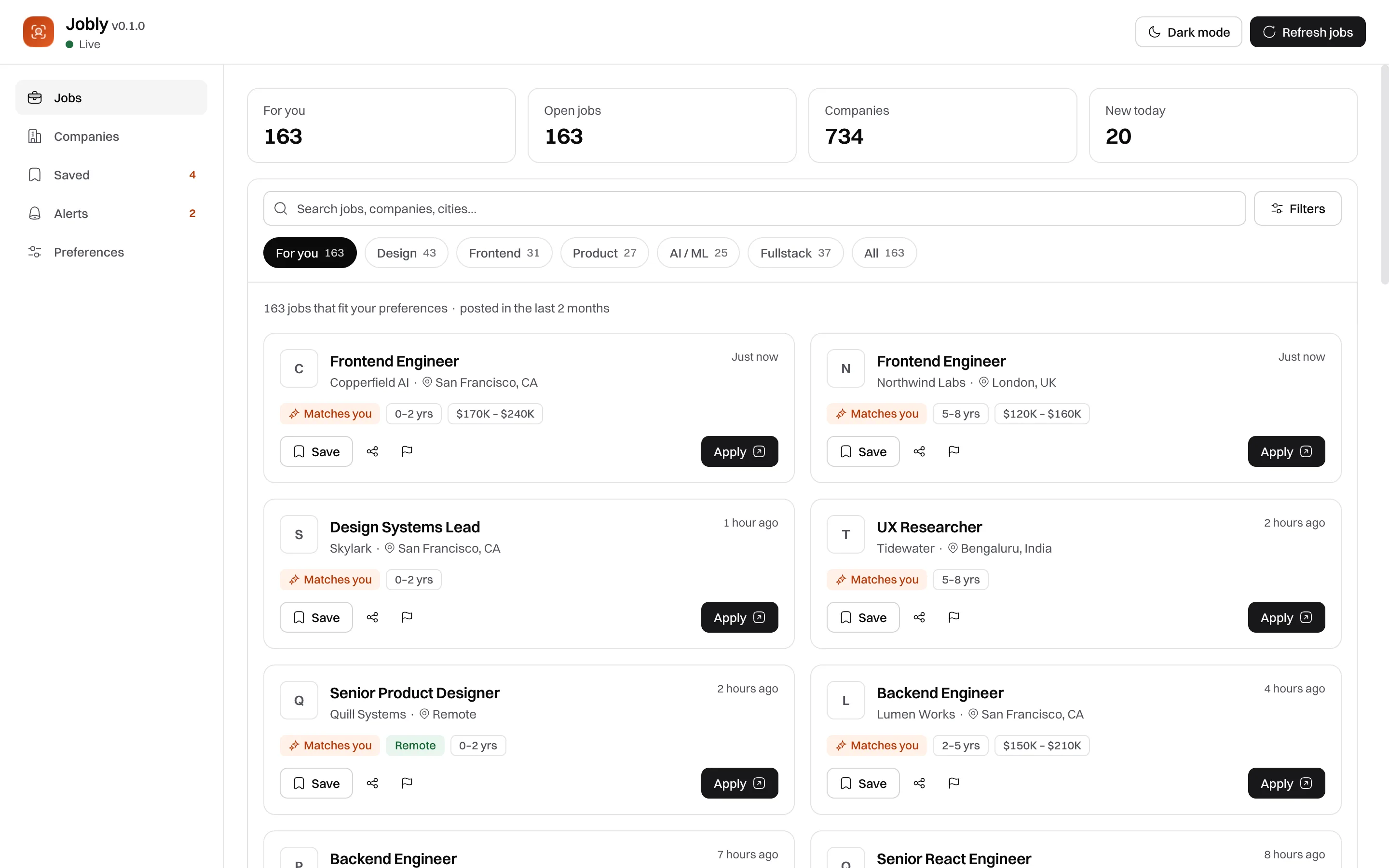
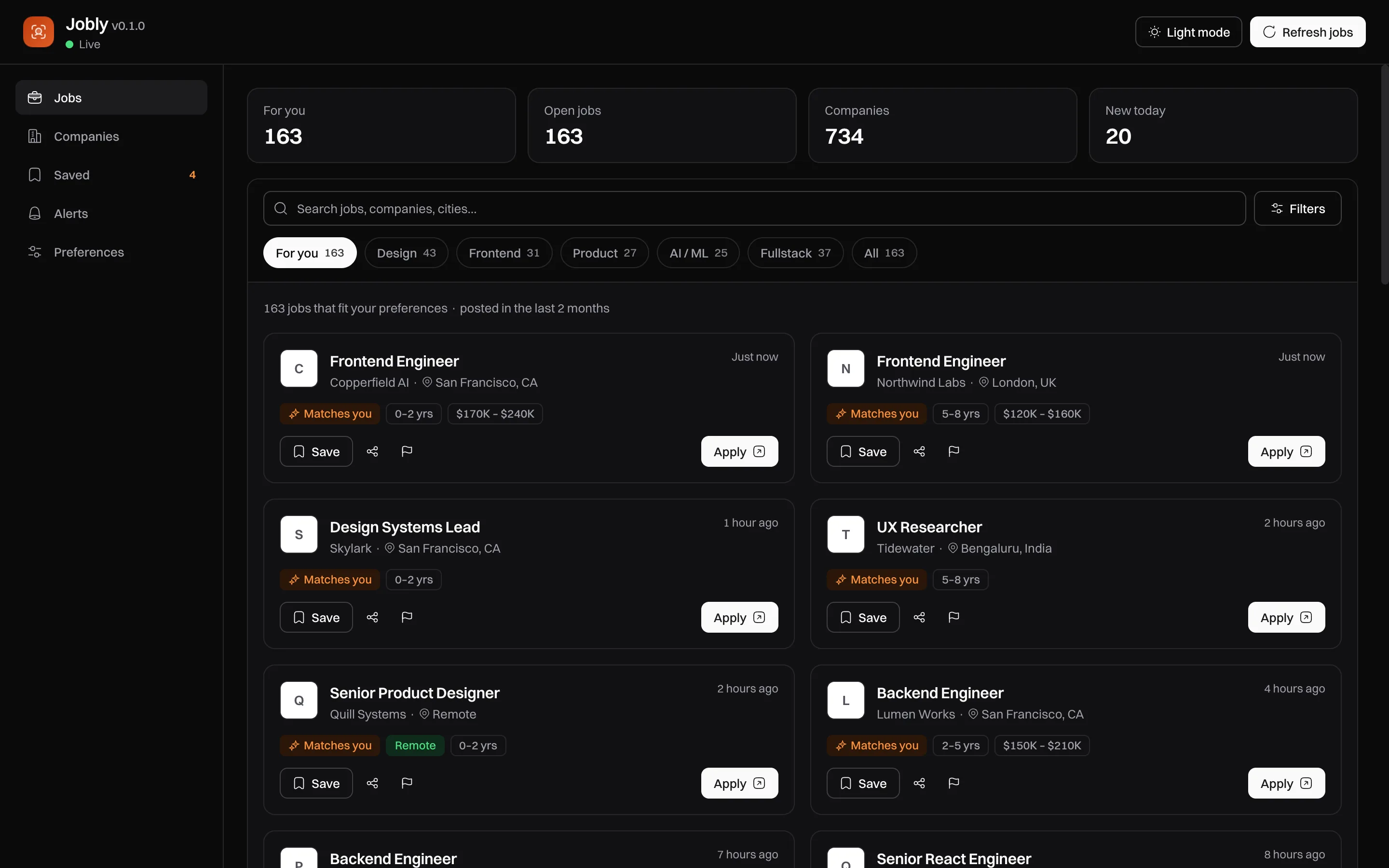
Your matches, newest first. Every card shows the company, location, how long ago it was posted, and a Matches you badge when it fits your preferences. Apply opens the original listing, usually the employer’s own careers page.

  • Sorted by real posting date
  • Search by title, company or skill
  • Report a wrong or suspicious listing
02

Filters

Narrow the list without changing your preferences: location, experience, minimum salary, how recently the job was posted, and remote.

  • Date posted: past 24 hours to past month
  • Minimum salary, or only jobs that list one
  • Reset all filters in one click
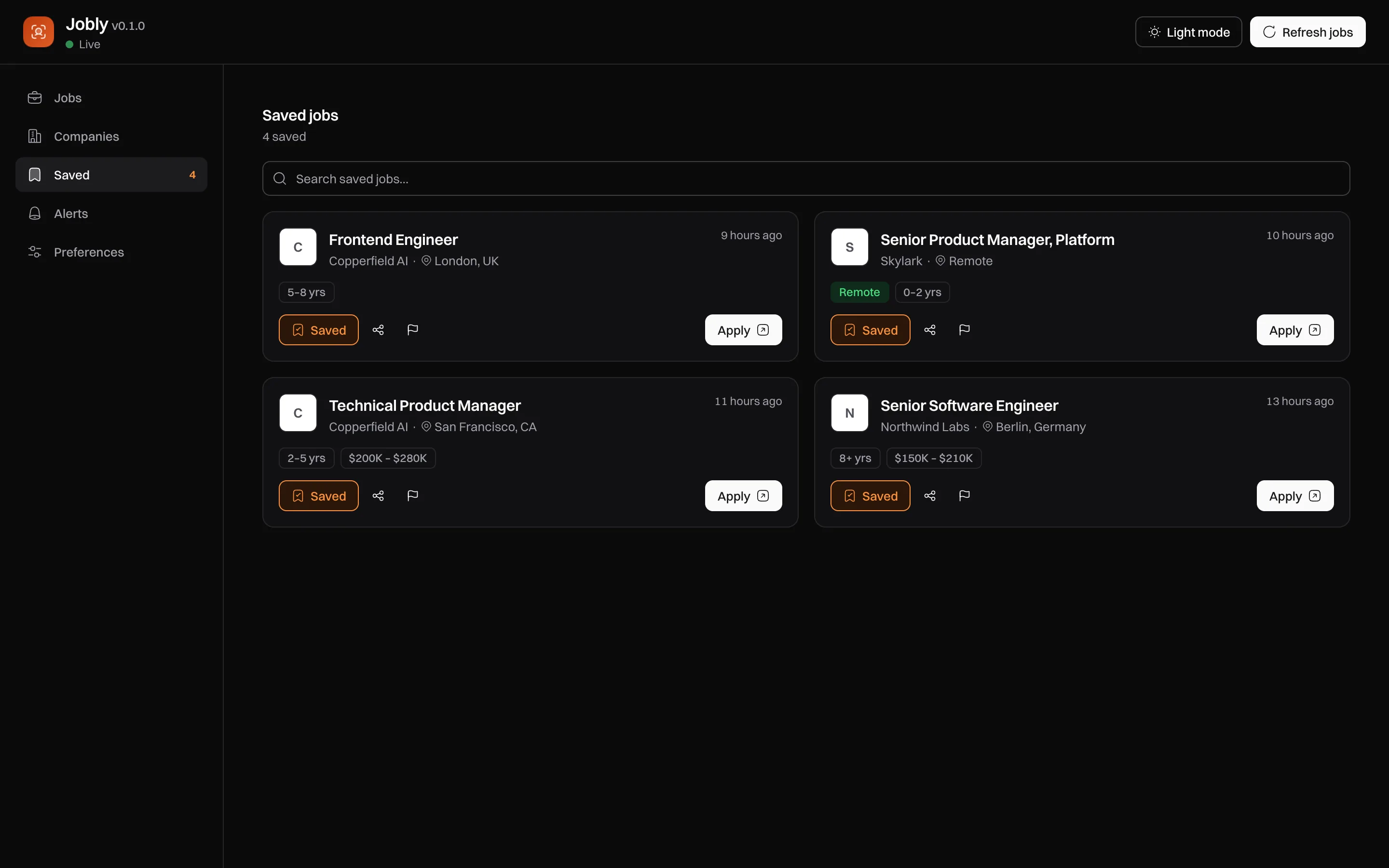
03

Saved jobs

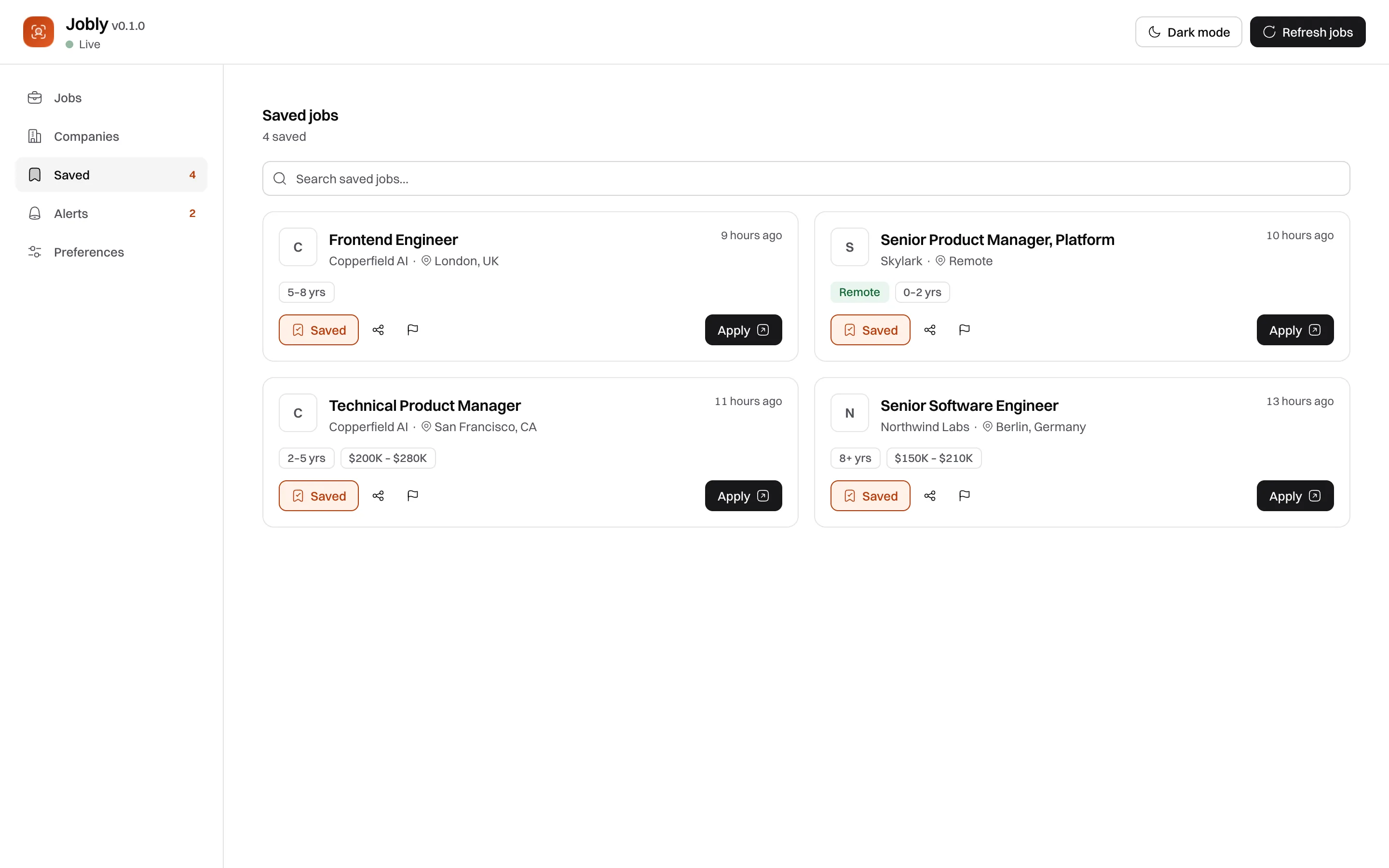
Keep a shortlist while you prepare your application. Saved jobs stay in this browser and nowhere else.

  • One click to save or remove
  • Works offline
  • No account, no sync to a server
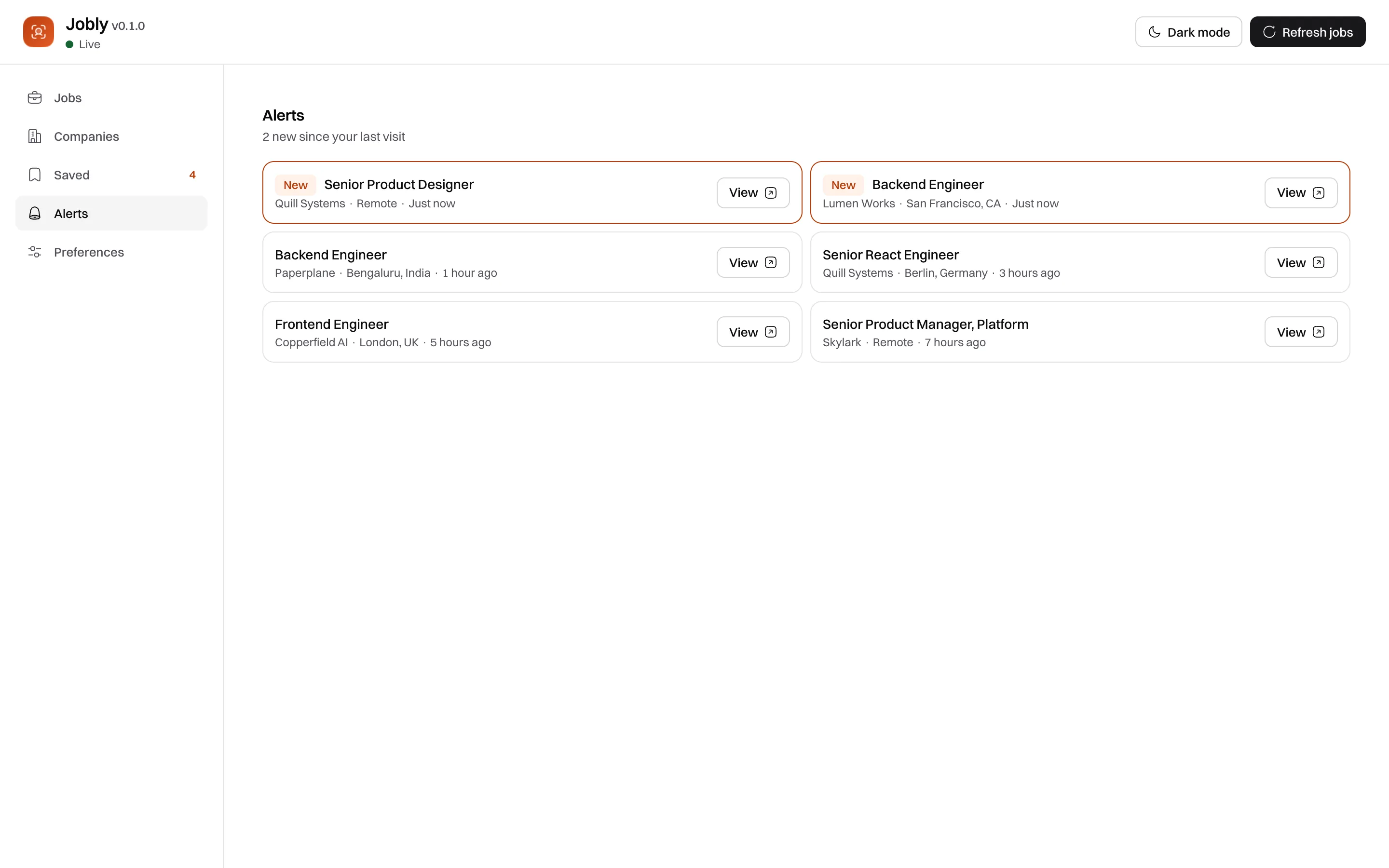
04

Alerts

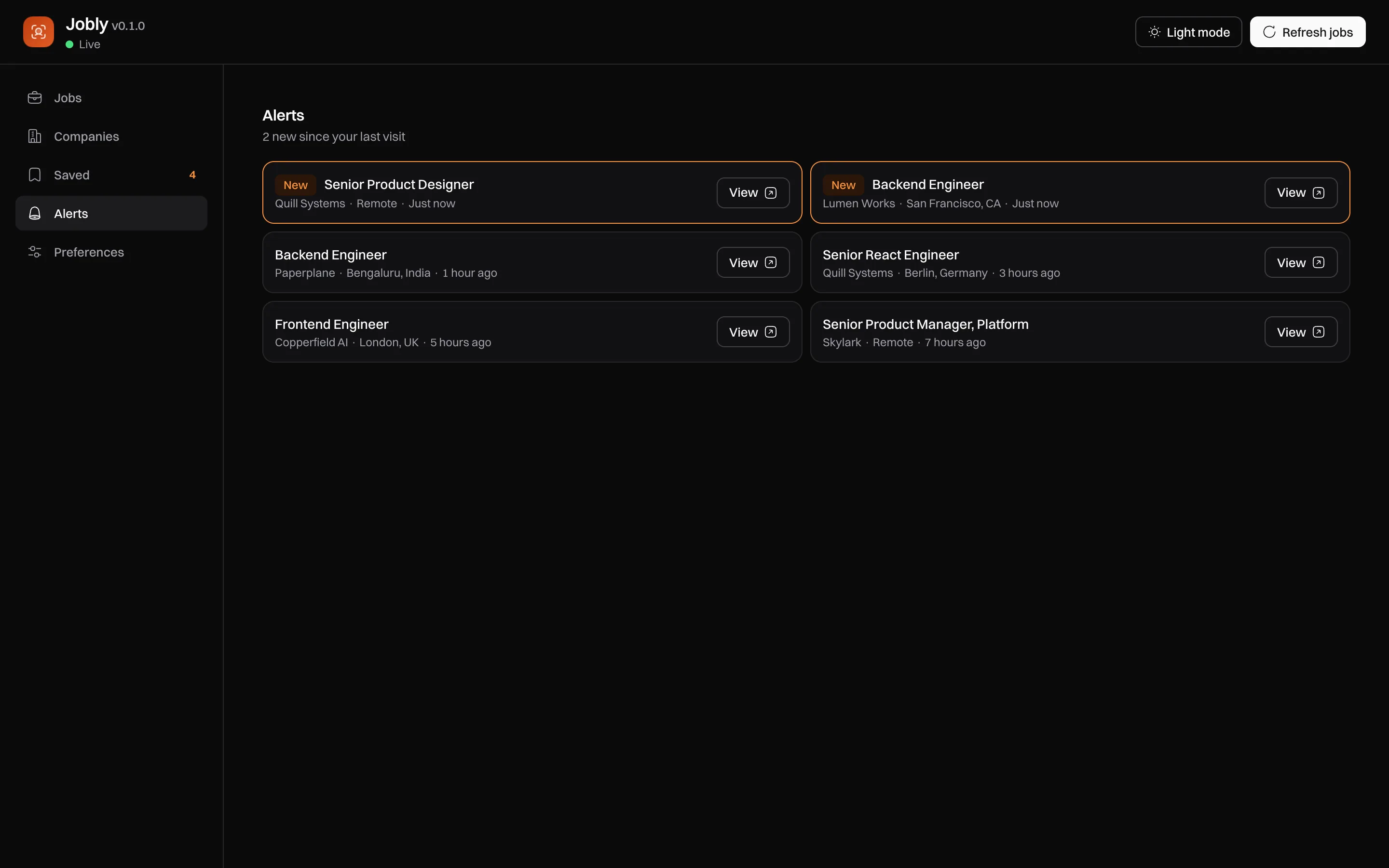
New matches found by the background check, with how long ago each was posted. New ones stay highlighted for the rest of your visit.

  • Badge on the toolbar icon
  • Optional desktop notification
  • Only jobs that appeared since the last check
Preferences

Tell it once what you want

Set these in the welcome tour or later in Preferences. They’re stored in your browser and used to pick your matches.

Behind the scenes

What happens in the background

  1. Step 1

    Jobly’s server reads the sources

    Every two hours it reads the career pages of hundreds of companies and three remote job boards, keeps each job’s real posting date, and drops anything older than 60 days.

  2. Step 2

    Your browser asks for matches

    The extension sends your search and preferences with each request. The server answers and keeps nothing.

  3. Step 3

    New matches become alerts

    Your browser compares the answer with what it has seen before and shows only what’s new.

Install

Add Jobly to Chrome

Install from the Chrome Web Store, pin the icon to your toolbar, and pick your roles in the welcome tour.

  1. 1Open the Chrome Web Store page and click Add to Chrome.
  2. 2Click the puzzle icon in Chrome’s toolbar and pin Jobly.
  3. 3Pick your roles in the welcome tour. Your first matches appear right away.

100+ tech jobs posted in the last 24 hours

Ready when you are.

Add Jobly to Chrome, pick your roles, and your first matches are waiting. It takes about a minute.